Free during the beta · Apple silicon · macOS 13 or newer · Signed by Apple
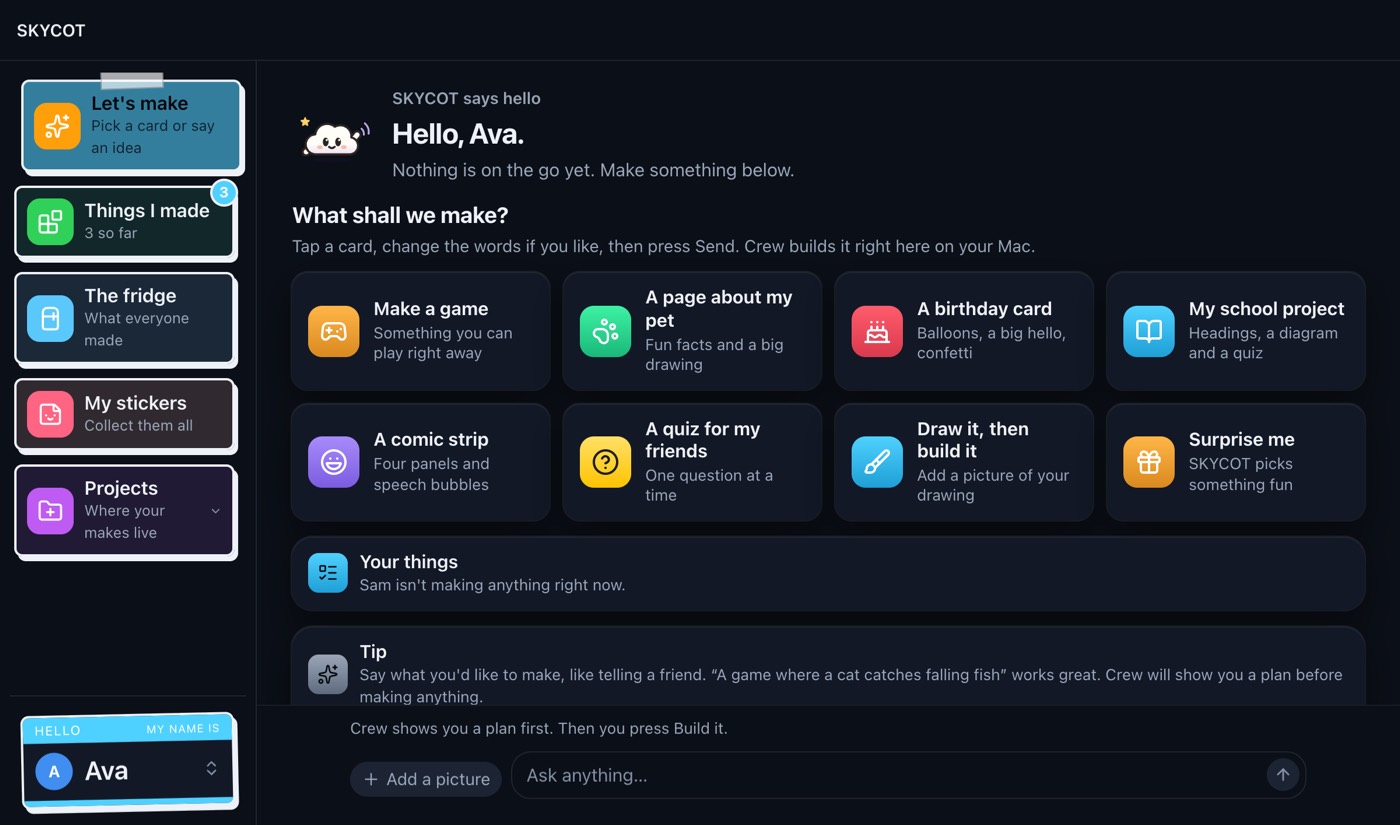
Beta screens with a sample family. Plain English, on your own Mac, with the AI you already
pay for.
9:00 am6:15 pm·What kids make
If they can say it, they can build it.
A game for a friend. A page about the family dog. A card for Nan. Real projects, made
by talking, or even by drawing.
SKYCOT
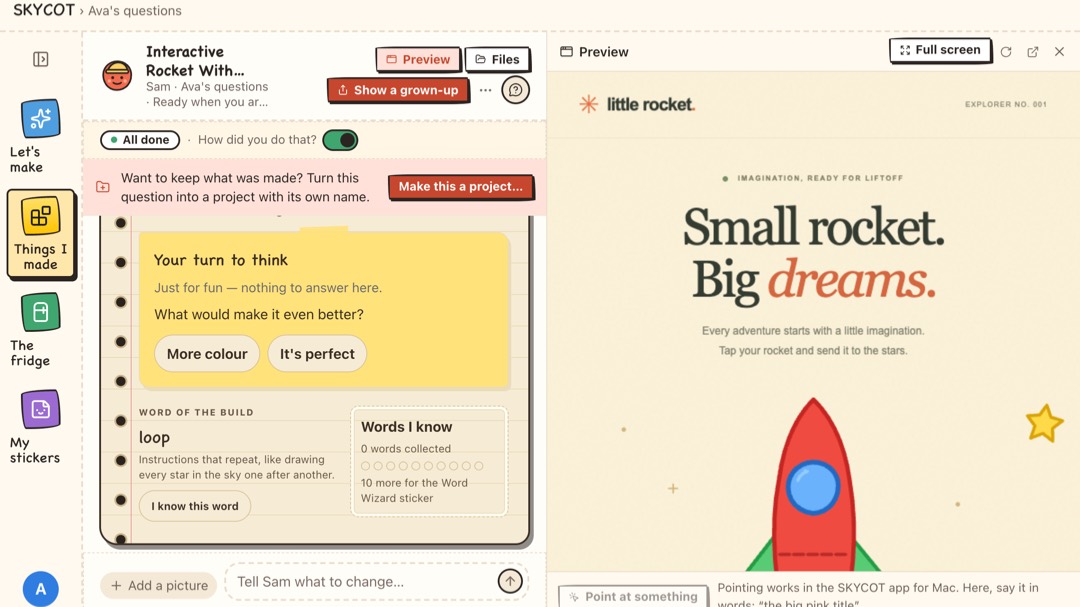
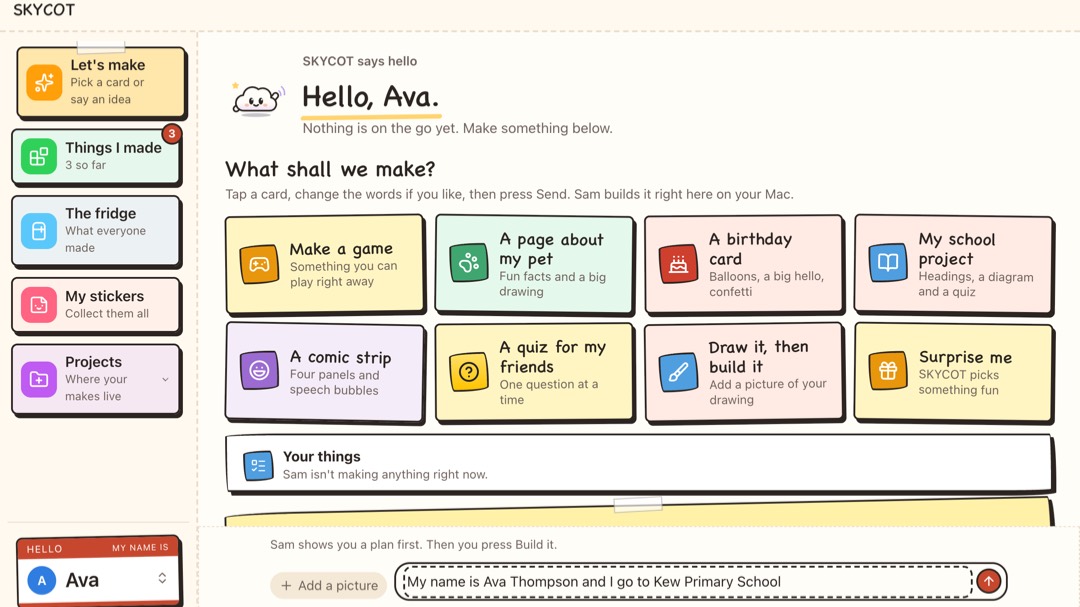
Draw it, then build it
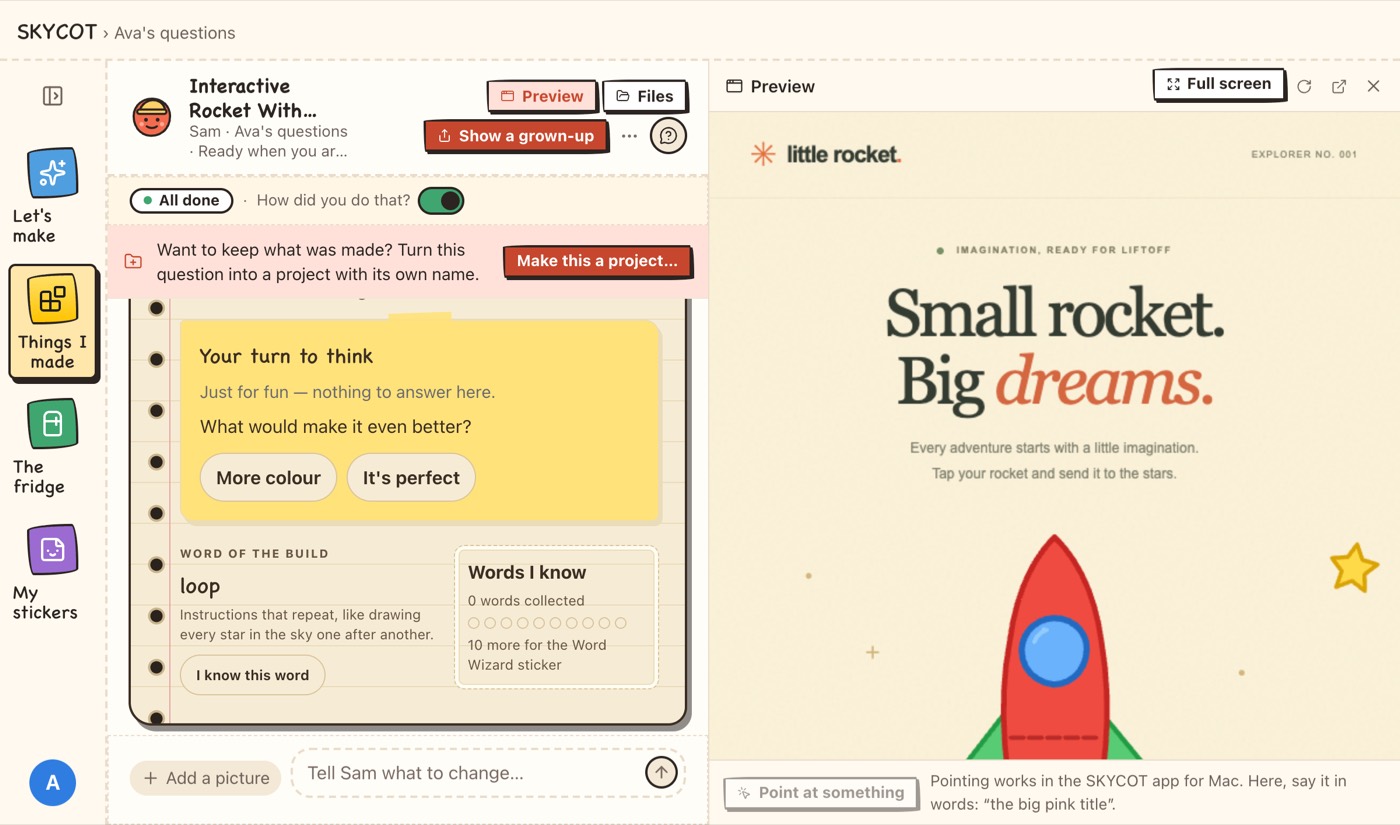
A crayon drawing becomes a working page.
Ava drew a rocket on paper and added a photo of it to her message. SKYCOT built it
into a page that runs right inside SKYCOT, with no internet. She earned the “Drew it
first” sticker.
Beta build, with a sample child called Ava.
A game for a friend
Make a game where you catch falling stars, and it gets faster.
A page about the family dog
A page about Biscuit, with his tricks and a countdown to his birthday.
A birthday card for Nan
A birthday card for Nan’s 80th, with balloons and a big hello.
A quiz for a little brother
A times-tables quiz that cheers when you get one right.
A comic strip
A comic about our cat, with four panels and speech bubbles.
Examples of what a child might ask for. What gets built depends on the AI service you
use, and a grown-up checks it before anything is shared.
12:00 pm6:30 pm·How it works
Three steps. No new vocabulary.
1
A grown-up sets it up.
Install SKYCOT, pick your child’s reading level, set a parent code and sign in
to the AI you already pay for. Your child doesn’t need an account of their own.
SKYCOT
2
Kids say it in plain English.
Type it or tap a starter card. Sam shows a plan first, and nothing changes until
your child presses Build it. Safe steps run by themselves; anything risky waits
for a grown-up.
SKYCOT
3
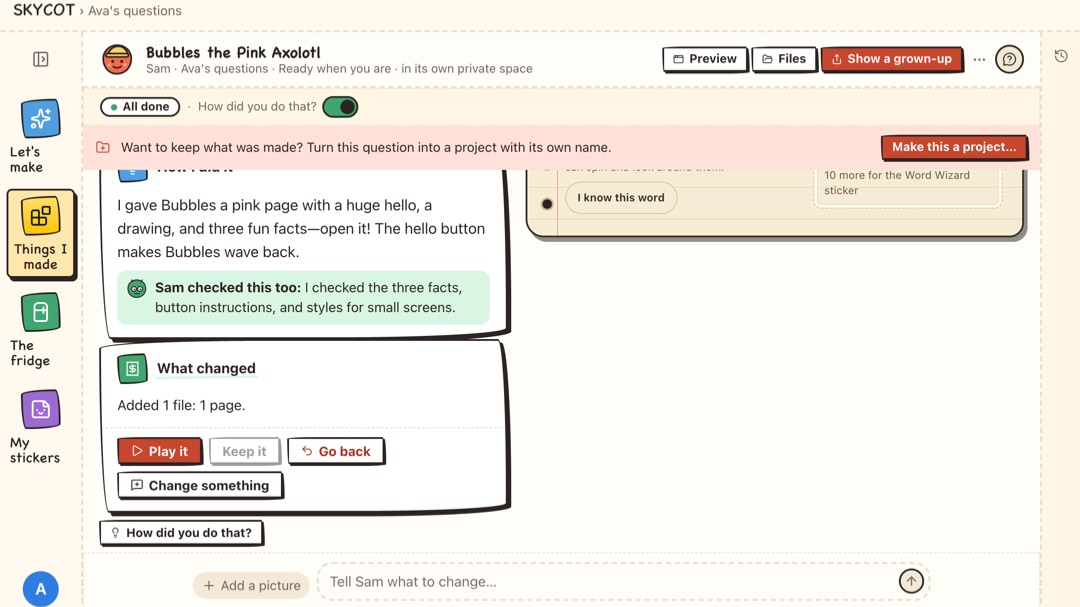
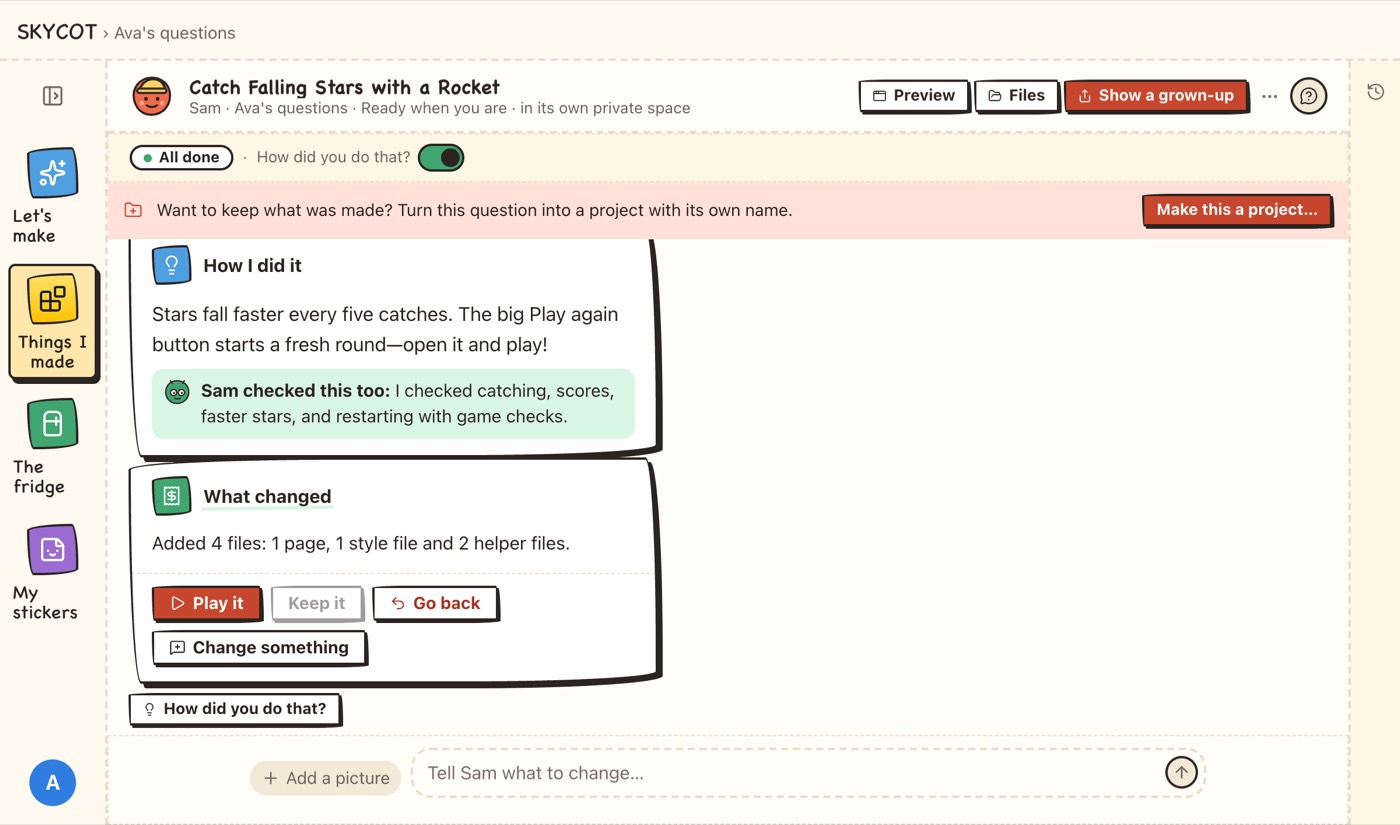
Keep it, undo it, or share it.
Play it, keep it or go back. Read what changed in plain words, and pin the best
to the family fridge. Sharing it with the world waits for a grown-up’s yes.
SKYCOT
SKYCOT
3:00 pm6:45 pm·Grown-up in control
Nothing goes online without your code.
Putting work online needs the parent code, and so do new automations, the developer
tools and switching the Family profile off. SKYCOT enforces it on the Mac itself, not
just on the screen.
Putting a page live
Parent code
A
grown-up said yes
4 to 6 digits that only you know. Building, drafts and Undo work as normal without
it.
1
Big red Stop.
Halts everything the moment it’s pressed. Nothing auto-confirms.
6
Hard rules that always ask.
Deleting, going live, spending, signing up, bookings and customer details.
5
Wrong tries, then a pause.
Five wrong codes lock every code prompt for five minutes.
Plan first. Risky steps ask.
Every build starts with a plan. The internet, installs and deleting wait for a
grown-up.
Undo, always.
Every change is a version, and Restore is one click.
Files stay on your Mac.
Only what each job needs goes to the AI you chose. The app sends us nothing,
unless you switch on the phone relay, which only passes along sealed messages we
can’t read.
An honest note. The Family profile is a set of guardrails inside SKYCOT, not web
filtering and not Screen Time. It doesn’t lock the Mac, its bedtime and limits apply
only inside SKYCOT, it can’t guarantee what an AI says, and a determined teenager could
get round it. It makes the first experience safe and kind. The rest is parenting.
5:00 pm7:00 pm·New for families
Made for kids. Run by grown-ups.
Eleven things in the beta you can download today.
For kids
Say it, tap it or draw it.
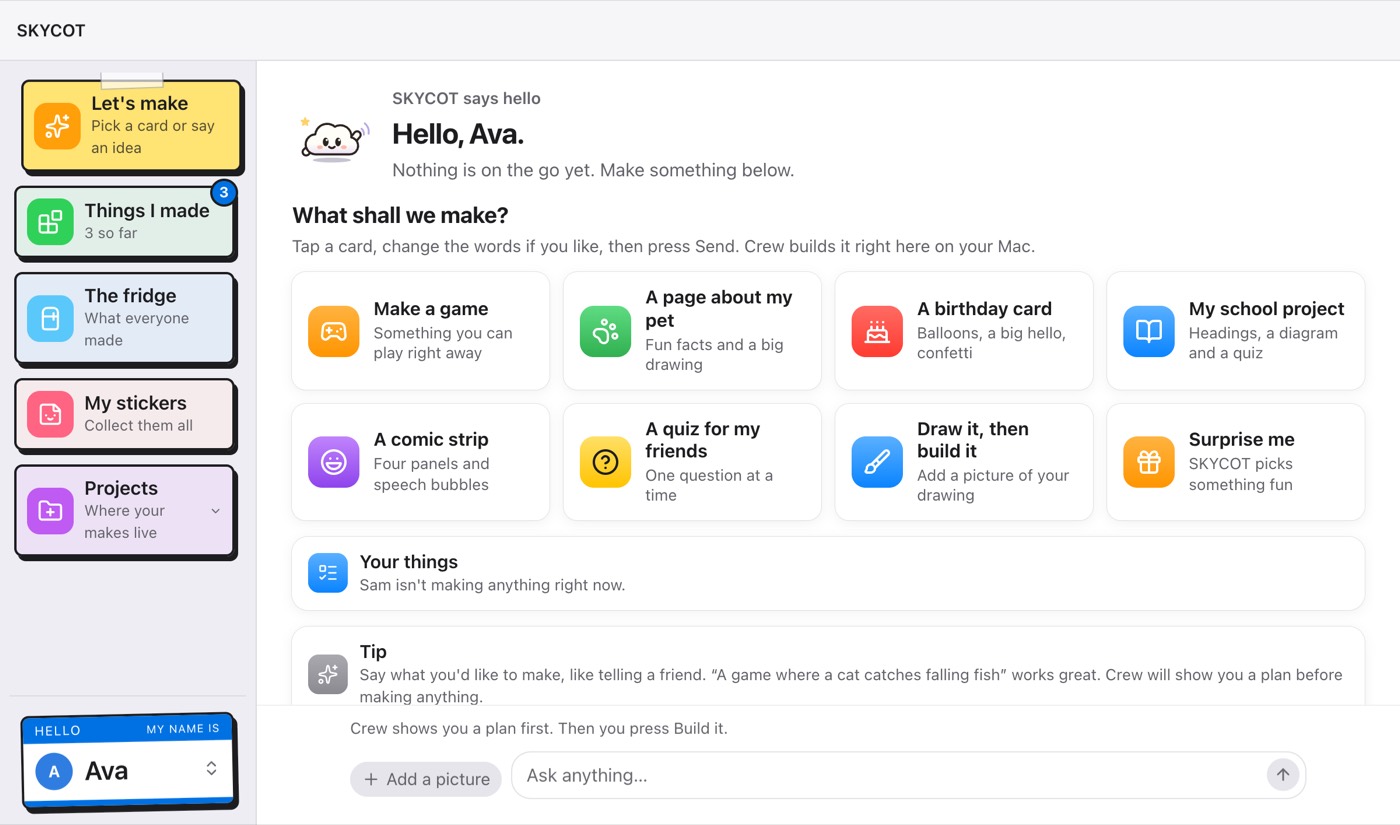
Tap a card to start
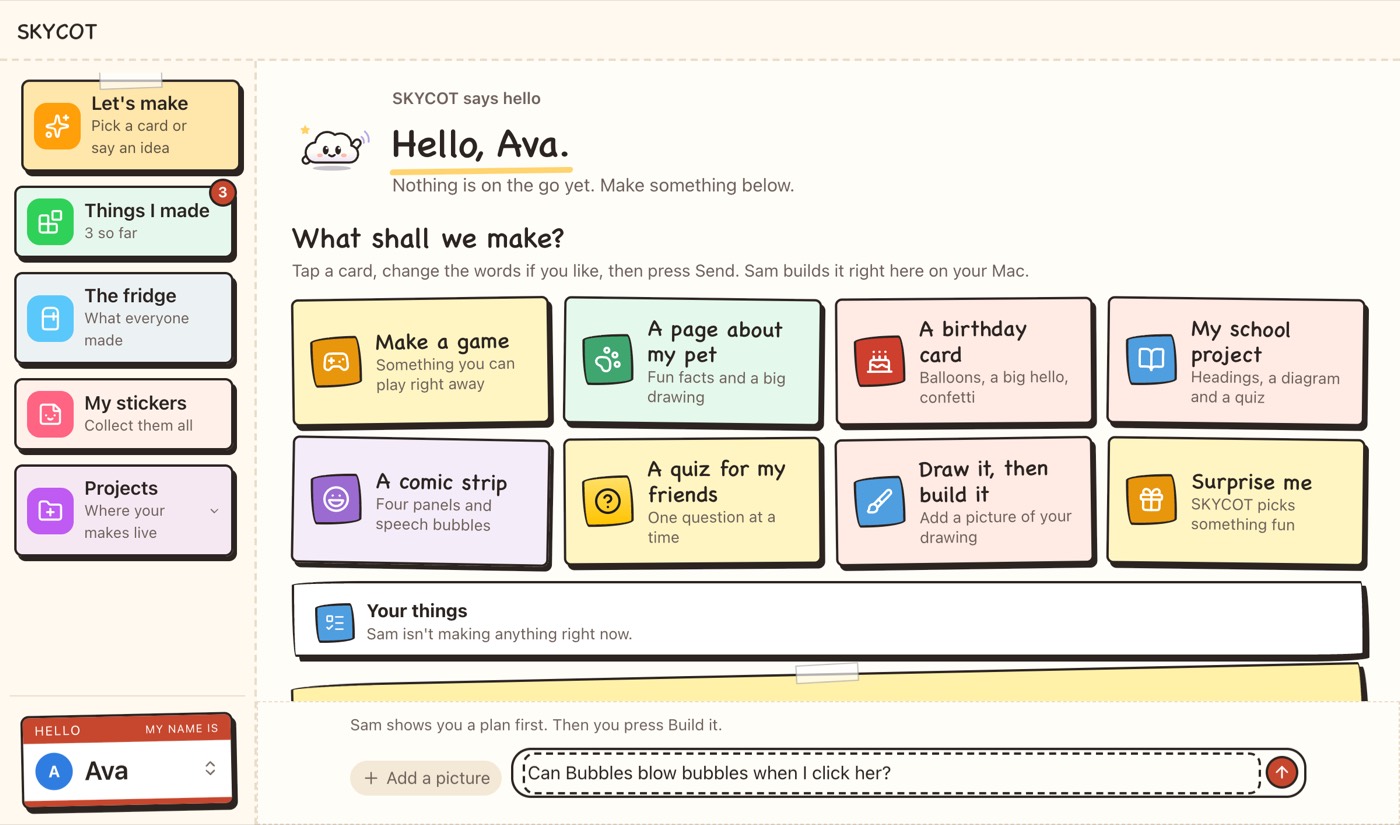
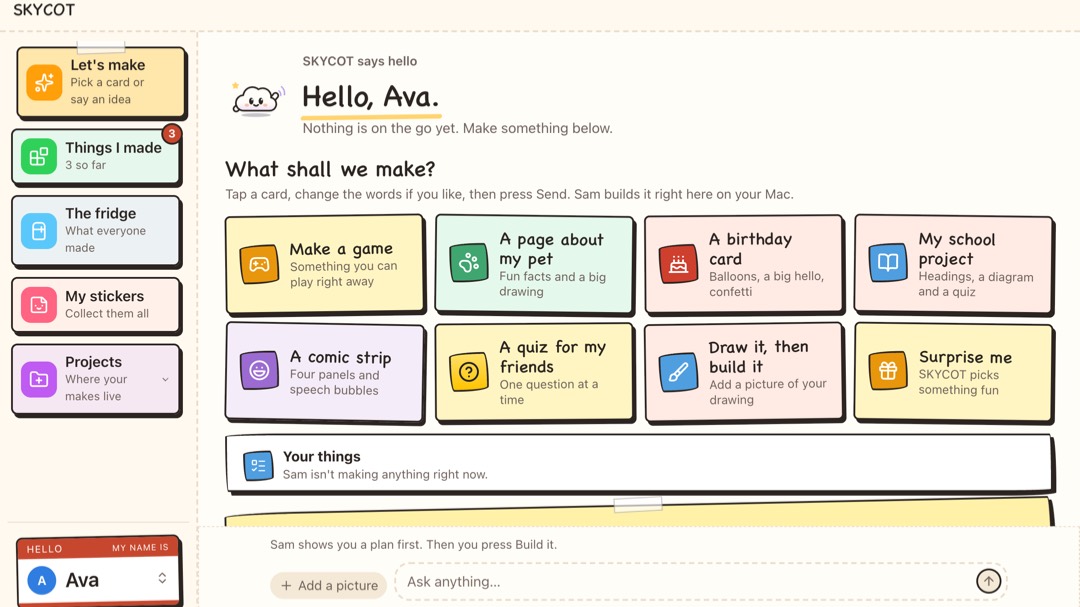
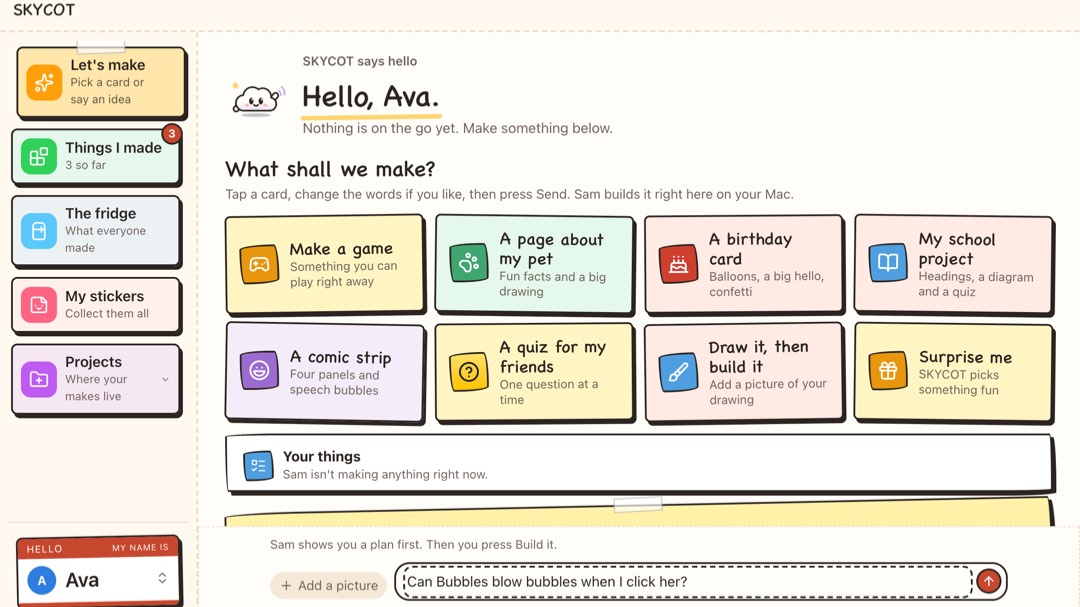
Eight one-tap ideas. Nothing is sent until they press Send.
Hear it read aloud
Replies read aloud by the Mac’s own voice. Voice typing is coming to the Mac
app.
Draw it, then build it
A photo of a drawing becomes a page that runs offline.
“How did you do that?”
Each build explained in kid-sized words, with a peek at the code.
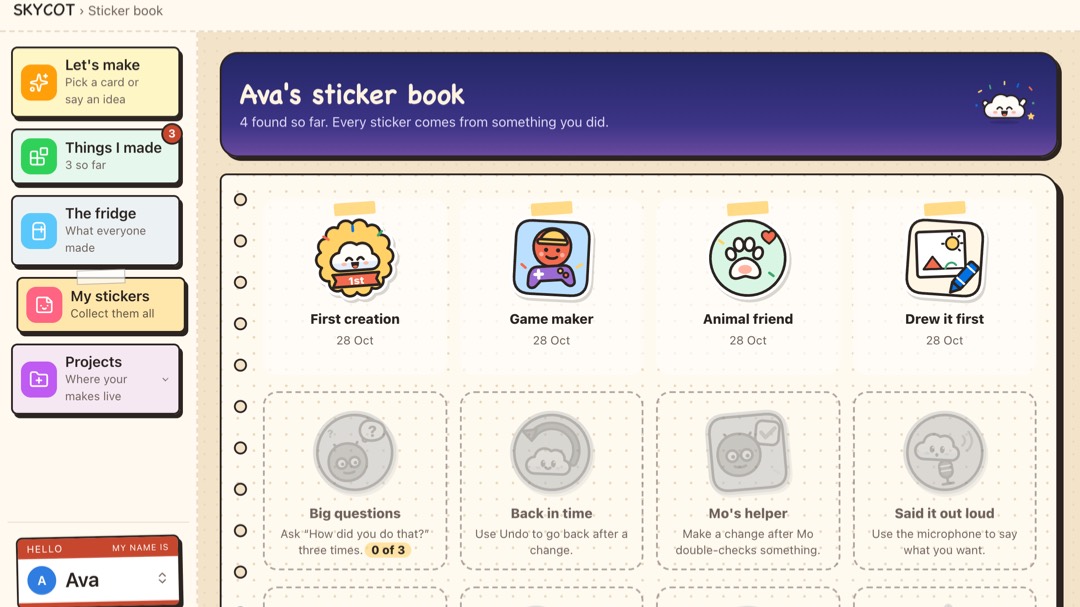
Stickers and a certificate
Sixteen stickers for real moments. Nothing rewards time spent.
For grown-ups
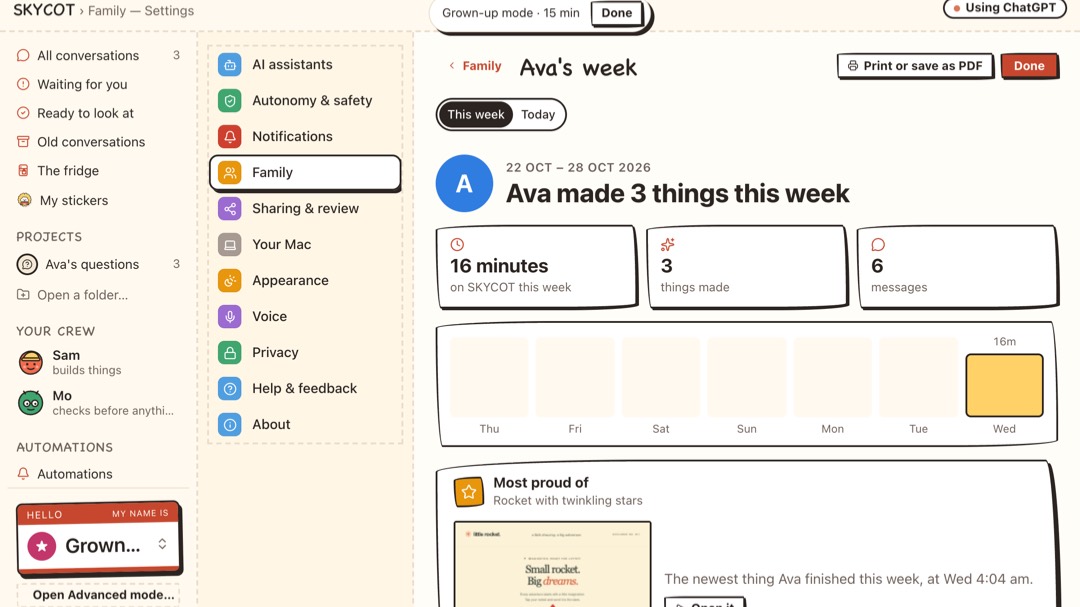
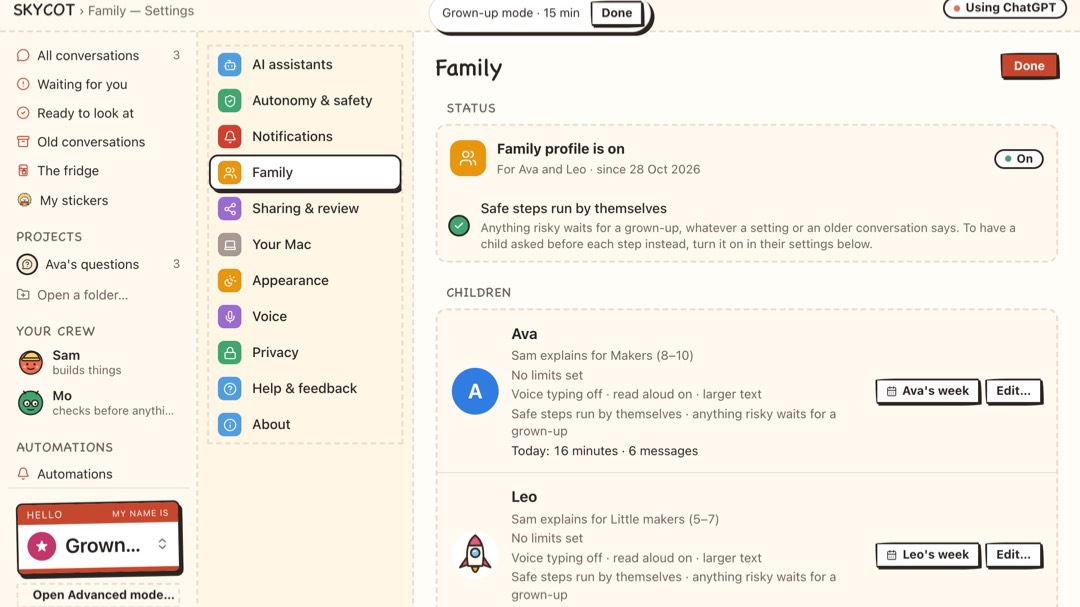
See what they made, and decide when the workshop closes.
The grown-up recap
What they did last time, each time you open Family settings, and the week on one
page.
Personal details stay home
Spots a full name or school and suggests leaving it out.
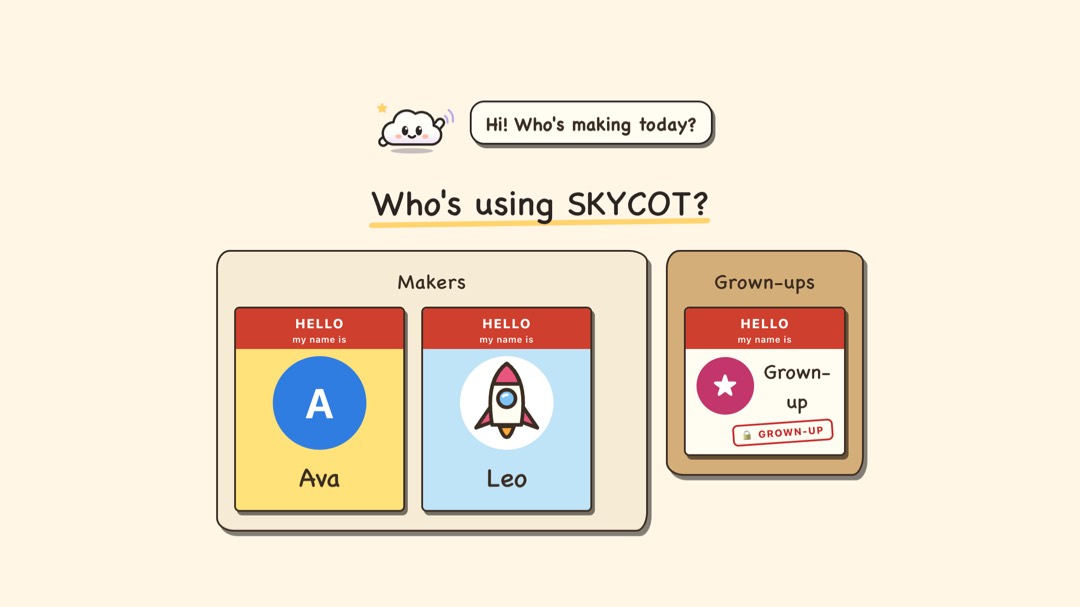
A profile for each child
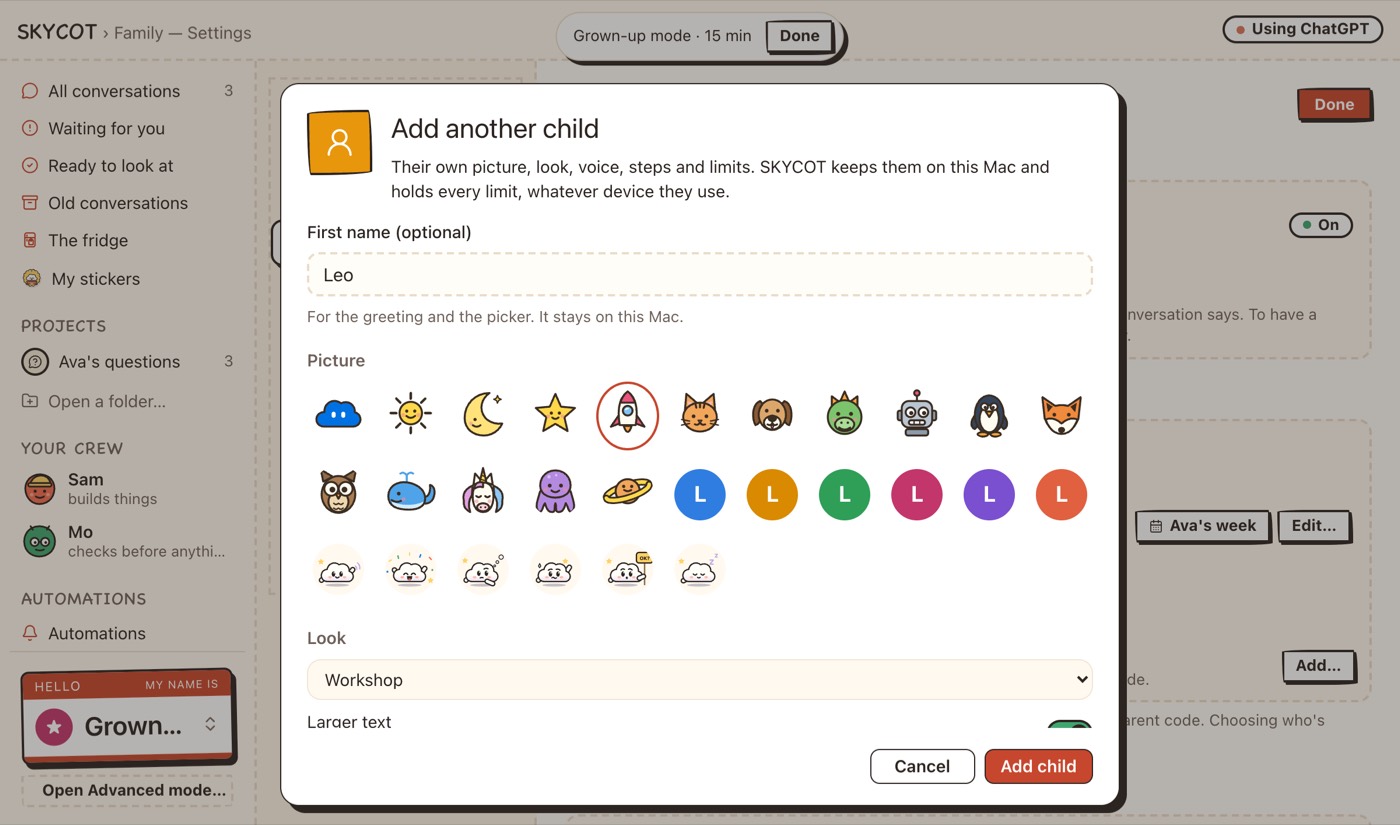
Up to eight children, each with their own picture, reading level and limits.
Sam explains at their level
Little makers (ages 5 to 7), Makers (8 to 10) or Big makers (11 and up). Sam is
never told a name or an age.
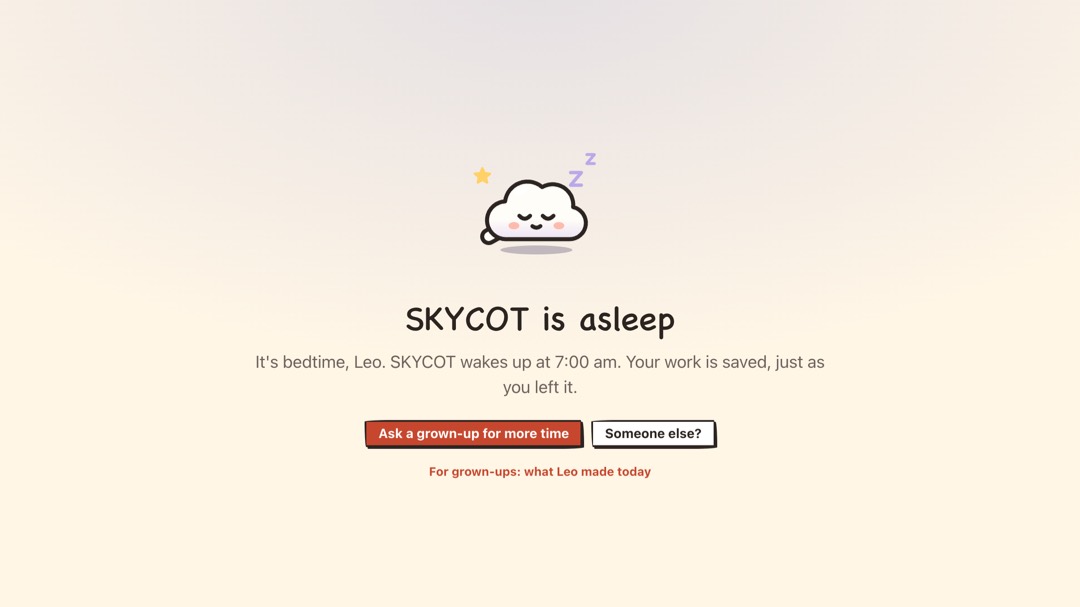
Bedtime and daily limits
A calm heads-up five minutes before. Inside SKYCOT only.
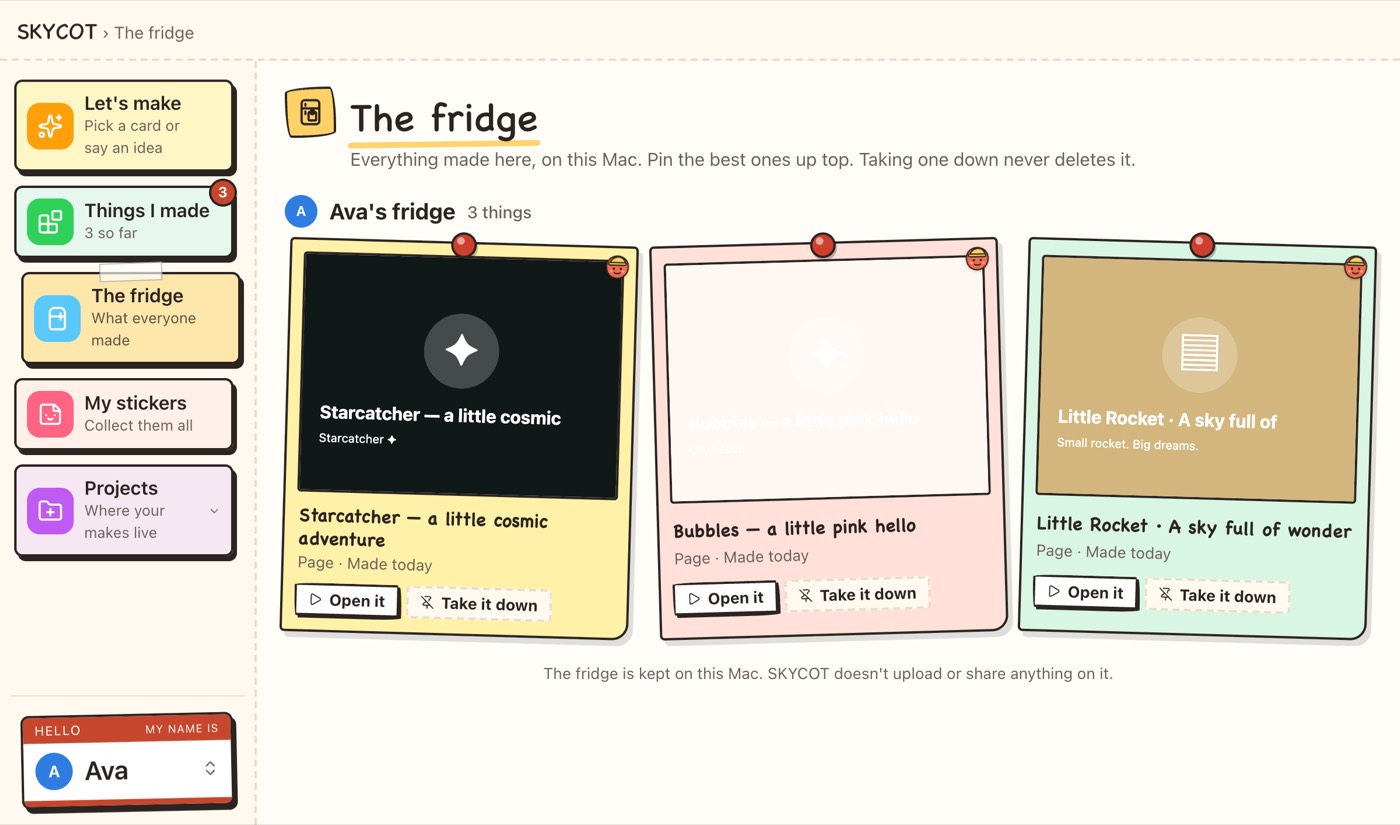
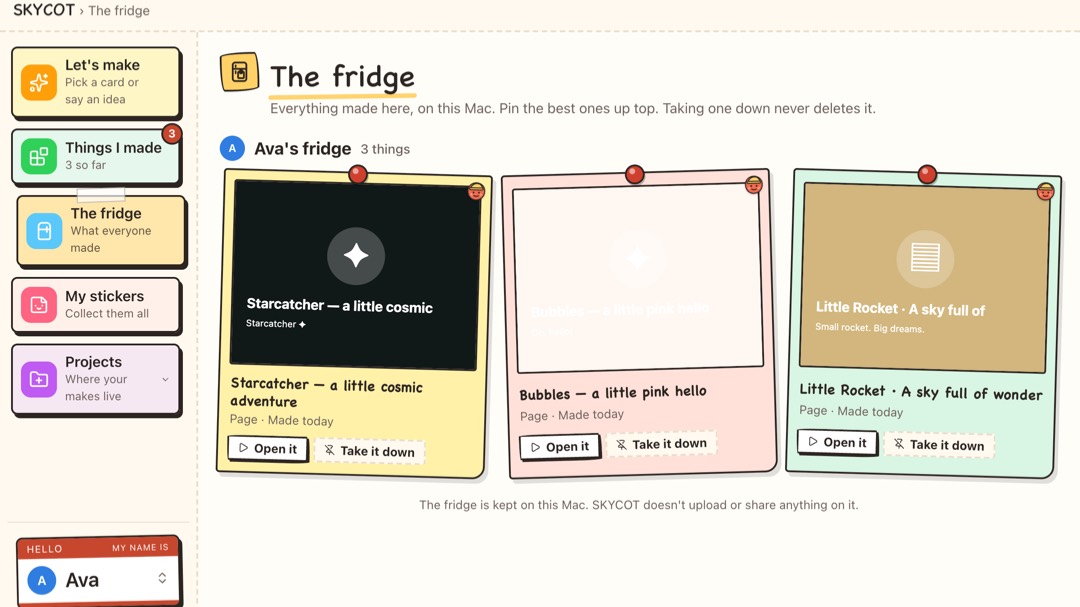
The family fridge
Pin the best things where the whole family can open them.
Screens from SKYCOT’s beta build, with sample children called Ava and Leo.
6:00 pm7:15 pm·Looks
Pick a look. Keep the same careful app.
A look changes how SKYCOT looks, never what it does. Every look has a light and a dark
side.
Workshop, the default
Cream paper, marker pens, sticky notes and a named crew.
Classic
The Apple Messages look. Calm, clean and familiar.
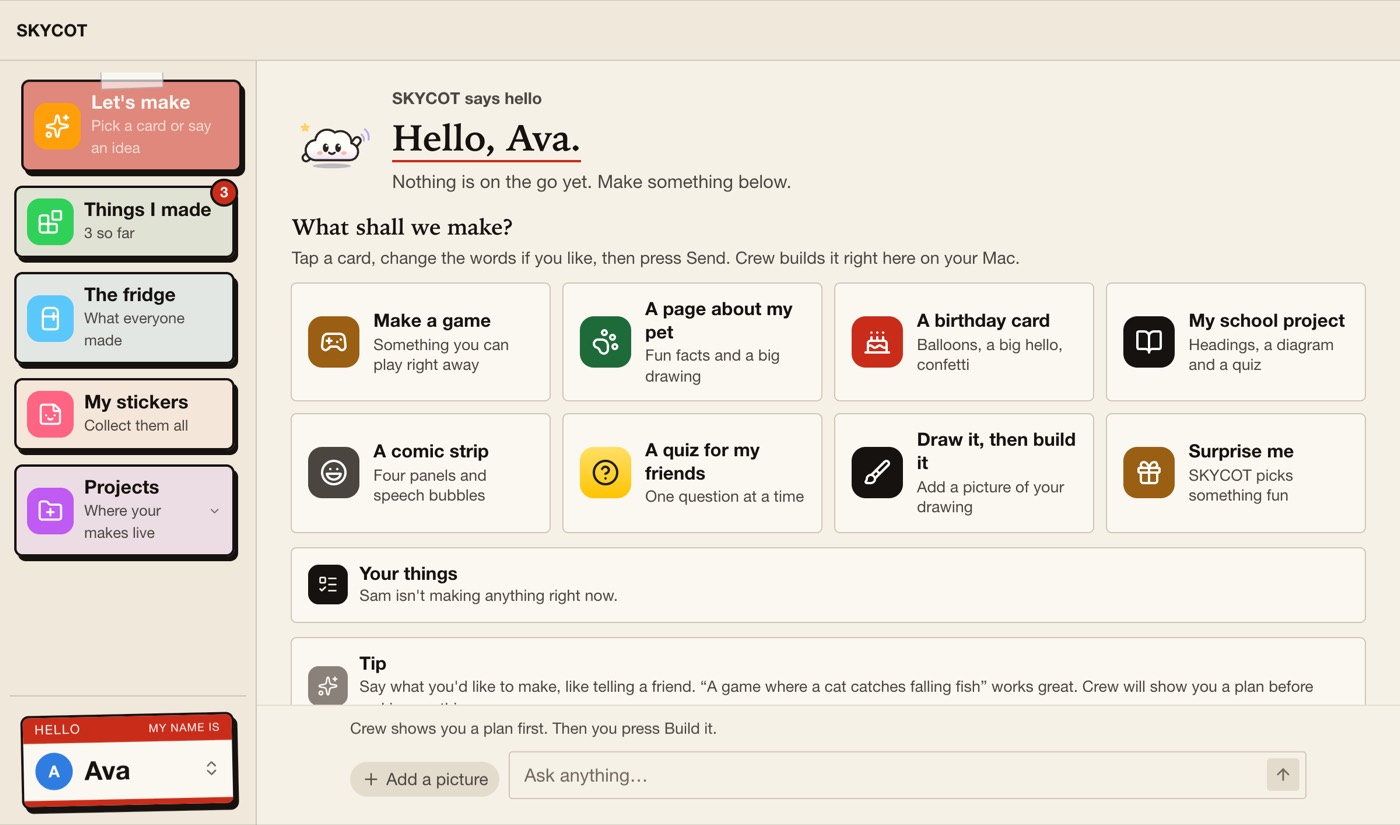
Paper
Warm paper and ink, serif headings and one vermilion accent.
Night Ops
Dark navy glass with cyan and amber. Mission control.
SKYCOT
6:30 pm7:30 pm·Bring your own AI
Works with the AI you already pay for.
SKYCOT doesn’t resell AI. A grown-up signs in through each assistant’s own sign-in, so
SKYCOT never sees the password.
ChatGPTCodex · OpenAI
GoogleAntigravity
ClaudeClaude Code · Anthropic
CursorAnysphere
And moreGrok, OpenCode and others
Each AI service sets its own age rules. Some, including Anthropic’s Claude and
Cursor, are for adults only; others allow teenagers with a parent’s permission. SKYCOT
runs signed in with a grown-up’s own account, under the grown-up’s supervision, and
doesn’t change those rules, so check your service’s terms first. In a Family profile,
Codex and Claude are locked down for children, and any other AI waits for a grown-up’s
OK. Product names belong to their owners.
7:30 pm7:45 pm·After bedtime
For grown-ups and small businesses too.
The same careful developer for your own website. Tell it what you want, like “Add a
Christmas menu page”, and SKYCOT builds it on your Mac and waits for your yes.
It asks before it acts. What it wants, why, and what happens if you say
no.
See what changed, in your words. The code is one click away.
Undo all of it. Really. Restore puts every file back.
8:00 pm8:00 pm·Get SKYCOT
Try the beta.
SKYCOT for Mac is free during the beta. A grown-up brings their own AI account.
Open the file you downloaded, SKYCOT’s disk image.
Drag SKYCOT to Applications in the window that opens.
Open SKYCOT and choose who it’s for: you, or a child you look
after.
It’s a beta, so some things will be rough. Tell us what breaks by email or on
Discord. No newsletter, and the app sends
us nothing.
8:30 pm8:30 pm·Questions
Questions before bed.
Is it safe for kids?
It’s designed to be a safe first workshop for a child using it with a grown-up
nearby. With the Family profile on, the assistant shows a plan and asks before
every change, the riskier modes and developer tools are hidden, Undo is always
there, and nothing goes online without the parent code.
These are guardrails inside the app, not a security product, and the AI service’s
own safety settings and age rules still apply. Stay involved: build together, and
look at what was made before it’s shared.
Does my child need an AI account?
No. SKYCOT runs on a parent’s own Mac and the parent’s own AI account, and the
parent sets it up and supervises. Your child doesn’t sign up for anything, with us
or with an AI service, and SKYCOT has no account of its own.
What your child types goes to the AI service you chose, under your account and
that company’s terms, so check its rules on age and on who may use your account.
What can the parent code lock?
Putting work online (both “send for review” and “put it live”), creating an
automation, opening the developer tools (Advanced mode), opening another folder,
changing which AI the children use, adding or editing a child, giving more time
after bedtime, restarting to update, running the welcome steps again, changing the
code, and turning the Family profile off. Five wrong tries locks every code prompt
for five minutes.
Everything else works as normal: building, drafts and Undo.
What does SKYCOT not do?
It isn’t a parental-control or security product. It doesn’t filter the web, lock
the Mac or replace Screen Time. Its bedtime and daily limits apply only inside
SKYCOT. It asks the AI to keep things child-friendly and spots personal details
before a message goes, but it can’t guarantee what an AI says. The parent code is
kept on your Mac, and a determined teenager could get round it.
SKYCOT also doesn’t create AI accounts for anyone, sell AI time, or send us your
work: we count update checks and optional relay connections as anonymous daily
totals that reset each UTC day and cannot be linked between days.
Which AI does it use?
The one you already pay for. A grown-up signs in to at least one: ChatGPT (which
runs Codex, from OpenAI), Google (Antigravity) or Claude (Claude Code, from
Anthropic), with Cursor, Grok and others under “More”. ChatGPT and Google sign in
inside SKYCOT; Claude takes two short Terminal commands, once.
Each service sets its own age rules. As of October 2026, Anthropic’s Claude and
Cursor require every user to be 18 or over, and OpenAI’s terms allow 13 to 17 year
olds with a parent’s permission; Google sets its own rules for Gemini and
Antigravity. Check your service’s current terms before your child uses SKYCOT with
it.
What does SKYCOT cost?
Free during the beta. You pay your AI provider as you do today. Pricing for later
will be announced before it applies to anyone.
Does it work on Windows or iPhone?
Mac first. The beta is for Apple silicon Macs only. The iPhone, iPad and Apple
Watch app is being tested with a small group through TestFlight: a parent can
approve a request and see the day from their phone, and it needs the family Mac
running SKYCOT. It isn’t on the App Store yet. Windows is on the list, and the
dates will be honest ones.
Does voice typing send my child's voice anywhere?
Voice typing starts off for every child, and a grown-up turns it on with the
parent code. Today it works in the phone app, on the device, and when SKYCOT is
opened in Safari on the Mac; it isn’t in the Mac app’s own window yet. SKYCOT
never records or keeps audio: the device’s own speech service turns speech into
text, and SKYCOT says which one applies before you switch it on. Reading replies
aloud uses the Mac’s own voices, so nothing leaves the Mac.
Is it open source?
SKYCOT is built on T3 Code, an open-source project by T3 Tools Inc. released under
the MIT licence. What we added is open too, under the Apache License 2.0. The
SKYCOT name, logo and characters are trademarks of Curble Pty Ltd and are not
covered by either licence. We say so in the app and on our
open source page. SKYCOT is not affiliated with T3
Tools.